Showing posts with label MS Office. Show all posts

Wednesday, July 24, 2013

Automating Internet Explorer (Setup)


The initial problem with automating Internet Explorer (IE) is that IE is a mess; and when I say a mess, I mean it is like the drunken celebrity whose career is slowly dying in the tabloid sections of the supermarket. What was initially meant to be the premier browser for the internet has ballooned to this bloated mess of a browser we know and grudgingly use today.

The history of IE is something that many bloggers have touched on, and it is almost universally accepted in the tech community as the last-resort browser, used only when some legacy system requires its use. But for the purpose of automation, it is the best option we have. There are probably multiple different ways to automate other browsers, possibly even using bash scripting or something like that; but I, like most people, do not have any knowledge of these systems. Microsoft has done a lot of work in providing a base from which we can automate IE, so why not attempt to use the framework they have built?

I will eventually add some more technical articles to this post that will help outline the structure and core of VBA. This post, however, will largely skip over the technical aspects of what is going on and simply outline how to perform the task at hand. You will need to read some posts to catch up to speed on how to set up VBA and what objects are to make sense of some of the explanations used herein, but I will attempt to keep it as low-level as possible.

Step 1 – The IE and Browser References

Visual Basic for Applications (VBA) has a reference for some useful objects and functions that will assist us in creating our IE automation. To add these references, go to Tools under the VBA development window (see here for explanation on how to get to this) and select References:

This will bring up a window with a list of References, listed in alphabetical order. You will want to select the following: 1) Microsoft Internet Controls, 2) Microsoft HTML Object Library, and 3) Microsoft Scripting Runtime .

Note that the top four references come standard with all VBA projects.

Explanation of References

You may skip this section if you do not wish for more information on what these references do. It is not essential that you know what they do, but it is useful to have background on them. Each reference is provided with a link that leads to a more technical explanation of each.

Microsoft HTML Object Library gives you access to the objects found in an HTML document. This is crucial since any navigation across a webpage is done through the nodes of the DOM. Don’t worry if you don’t understand what this means, just think of it like this:  the DOM (which stands for Document Object Model) is a building that contains information, and each node is a doorway that leads to a specific part of that information. Navigating this building (also known as traversing the DOM) is done through methods defined in this reference.

Microsoft Internet Controls is what allows you to control IE without ever having to click on the icon and clicking on the window that would appear (also known as creating an instance of IE that can be manipulated programmatically). This object is the backbone to automating IE as it allows you to interact with the web as though you were actually viewing the page inside the browser, but with the key difference in that the computer will just be simulating your actions. There is another object called WebBrowser that can be used, but my initial research seemed to indicate that this object is outdated. Therefore, we will only use the InternetExplorer object found in this reference library.

Microsoft Scripting Runtime provides access to the filesystem (or more generally the folders on your hard drive) of your computer. Though not technically necessary when automating IE, it is useful to be able to open and move files that have been downloaded from the internet.

Step 2 – IE as Class Module

To begin the setup, create a new Class Module and name it something that will help you know that it is an object used for automation (i.e. WebAgent, IE, IEObject, BrowseMeDaily… whatever you want). For this Demo we will refer to it simply as IEAgent. To do this, right-click on your project anywhere within the Project Explorer on the left-hand side of the screen and select Insert > Class Module (highlighted below).
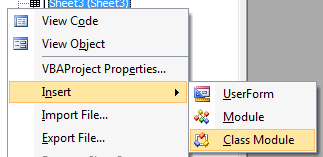

Above - Insert Class Module


Above – Change the Class Module name from Class1 to whatever you want (in this case, IE Agent).

There are many advantages to making IE a class module versus a regular module. The most important reason for making IE a class module is that it allows you to use the same instance of IE across multiple modules (which is important as we will see in subsequent posts). Since we are choosing to make IE a Class Module, we will also be able to use some useful code bites by calling a method found in the Class module instead of having to write that code block every time we use IE. 

Since there are so many reasons for creating a Class Module over a regular module for IE I will not enumerate all of them. But remember this pattern in VBA: if you intend to use something as if it were a standalone object, then it should be a class module; if you want to do something that any object should be able to do (like open a file) then it should be in a module. This is the argument between static and non-static classes in other languages such as Java.

Step 3 – Creating the Basic Structure for Automating IE

This step is where we will actually start writing code. Attached is the module we have written to be found in plaintext form on a shared google doc (blogspot does not support file sharing, so this is a sort of hack). If you wish to skip this step and just download this agent, feel free to do so.

To begin, we must declare some simple variables that will be used in this object, such as the IE object defined in the Microsoft HTML Object Library. Other useful variables will be to define a number variable that will store the process number the IE object will run on. What this means is this: an operating system keeps track of what programs are running by placing each program (or process) in a table and assigning it a number. Whenever we will create this IEAgent, it will create a new IE browser process that the computer will then keep track of by referencing the number it was given upon creation (also known as the process handle). Don’t worry if you don’t understand what this means, just know that it will be used to track the creation of IE in a way that we will be able to interact with it in a different way that will be useful later.

Begin by typing the following:

Dim ie as internetexplorer
Dim handle as Long

You may notice that as you type internetexplorer a popup box appears that changes as you type in the name of the object. This is called intellisense, and is used to help developers determine what objects, properties, or methods are available to them in this context. Though the VBA intellisense is weaksauce compared to other development environments, it is still useful After typing in a few letters after the As you will be able to arrow down to the correct object and press TAB  or Enter.

Enter the following line of code after the variables:

Private Declare Function SetForegroundWindow Lib "user32" (ByVal hwnd As Long) As Long

This calls what is referred to as an API that will be used to open up webpages in multiple tabs. It is not necessary to this post to understand or even know what this line does, but in essence it will enable us to grab IE as if it was the window we were currently using (called Focus – it determines what window you are writing in/clicking in, etc.). Doing so makes some user functions like hotkeys programmable. So if you want to send a hotkey such as PageDown to IE, this API will be needed to do so.

Next define the following methods:

Private Sub Class_Initialize()
                Set ie = CreateObject("internetexplorer.application")
                handle= ie.hwnd
End Sub
Private Sub Class_Terminate()
                ie.Quit
                Set ie = Nothing
End Sub

Since IEAgent is a class module, we can run code upon the creation of the IEAgent Object (this is called instantiation, or setting up of object settings). This will both create and destroy the object as necessary.
With this code, you have successfully completed the setup of the IE automation object. The next few posts will be discussing how to flesh out the object to make it do what we want.

Automating Internet Explorer (Add IE Controls)

After having built out a shell for the Internet Explorer (IE) object in a class module, we are now ready to start adding some useful functionality. It is important to note that without adding these methods the IE Agent will not be able to perform any functions other than being created as the actual IE object is hidden behind the IE Agent (see my previous post about setting up an IE Agent).

Some key features we will focus on is wrapping up code blocks inside methods that would normally have to be written out every time you would call the basic IE methods on the reference IE object discussed previously. Other methods will focus around navigating the DOM, opening up tabs, and opening up webpages.

Adding Basic Browsing Functionality

Some of the basic functions of IE are 1) opening web pages, 2) opening web pages in new tabs, 3) changing the state of the webpage through clicking on buttons, table cells, etc., and 4) downloading files from a remote server. Each of these functions are performed in a browser via mouseclicks and keyboard input. But during automation you cannot do any of these things using a mouse or a keyboard. Thus we are given a framework from which we can do all of these things programmatically.

Opening Web Pages

The most basic function of the browser is to open a webpage. This is a relatively straightforward event for someone using a browser, and so it is also fairly straightforward for automation. However, there are some issues that a human will be able to overcome intuitively that a script automation must account for, such as waiting for a page to load.

To begin, pull up the IEAgent we developed in the previous post. Since IE needs to load the page completely before any actions can occur, it is necessary to write a wait method. Add this code to your module below:

Sub waitForLoad()
    'pauses the exection of the code until the webpage has loaded
    Do
          If Not ie.Busy And ie.ReadyState = 4 Then
                     application.Wait (Now + TimeValue("00:00:01"))
                     If Not ie.Busy And ie.ReadyState = 4 Then
                             Exit Do
                    End If
       End If
       DoEvents
    Loop
End Sub

The above code enters a loop that checks the state of IE every millisecond (which is an eternity in computer time) and won’t give up control of the program until IE is ready. Note that the IE object was defined during the setup of the IEAgent. This function will be used multiple times within the IEAgent as well as in the parts of a script where the IEAgent is used.

Next we will add a method that will accept an URL Address and then opens the page. This will employ the previous method so that nothing will happen to the page until it is fully loaded.

Sub openpage(url As String)
      'opens the specified url in internet explorer
       ie.navigate url
       waitForLoad
End Sub

The function called on the IE object (navigate) is a predefined function written by Microsoft to aid developers. You don’t have to worry at all about what is going on underneath, just know that it will open any page that you normally would through regular browsing. It then calls the waitForLoad function, thus allowing the page to be in a ready state before any other functions are called.

Advanced Page Loading

Microsoft has provided many ways for someone to write code to automate a process. This is nice as it lends itself to be highly extendable to other areas, but it also means that some things aren’t available in one method that is available in another. The following is a means to open up a webpage using what is called a shell object. For most uses the previous version will suffice, but use of the shell opens up possibilities such as opening multiple windows or tabs at once. Other advantages include using an already open instance of IE by grabbing it’s handle (handles discussed in previous post).

Don’t worry about knowing what a shell is or how it is implemented, but if you want to do some of these things, then adding this code is necessary. My suggestion is to add it as it is not a whole lot of code and will give your code more flexibility to work in the future.

To start, add these two lines above the variables defined at the top of the IEAgent.

Private Declare Sub Sleep Lib "kernel32" (ByVal dwMilliseconds As Long)
Private Declare Function ShellExecute Lib "shell32.dll" Alias "ShellExecuteA" (ByVal hwnd As Long, ByVal lpOperation As String, ByVal lpFile As String, ByVal lpParameters As String, ByVal lpDirectory As String, ByVal nShowCmd As Long) As Long

The top of your IEAgent should now look something like this:


These are additional APIs used to provide access to the shell objects built in to Windows and to provide a function to stall the execution of the program. These have many parameters that are needed, but the provided example will do the job in opening up additional tabs within an instance of IE.

Sub openPageInTab(url as String, newHandle as long)
                Sleep 1000
                ShellExecute newHandle, "open", url, vbNullString, vbNullString, vbMaximizedFocus
End Sub

This article provides additional information on the ShellExecute function. For our purposes, this will take a URL and open up a tab in the browser with the given handle. To open up a new tab using the IEAgent, you will call this code as follows:

openPageInTab(“www.google.com”  , handle)

The url will lead to google.com, and the handle is the handle defined at the top of the IEAgent as shown in the picture above. Remember that this handle was set upon creation of the IEAgent, so you don’t have to worry about getting the handle in any way. Simply place the handle variable into this method’s parameter and it will open a tab inside the IE browser.

Note that if you want to open up a URL in another instance of a browser (say you wanted to use Firefox or Google Chrome), you can call that browser using this function and open up the tabs in that browser. This is not always a good practice to do as it breaks a concept called encapsulation in some ways, but for our purposes we will leave this option open. Because our task is automating processes, it may be necessary to occasionally open up another browser for whatever reason. Therefore we keep this method here as it doesn’t make much sense to make a separate module to do this. This is an example of when good form gives way to practical design.

Other Basic IE Functions

Part of automating processes is deciding what parts of the process the user needs to see. Microsoft has developed a means to turn off window visibility for IE, allowing you to navigate in IE without the user ever seeing the browsing window. This has advantages as it doesn’t require IE to render anything, so turning off visibility will create time savings.

To turn on and off visibility with the IEAgent, add the following code:

'Set visibility of ie
Public Property Let visible(theValue As Boolean)
          ie.visible = theValue
End Property

To call this code, do the following:

ieAgent.visible = True

You can also set it False. This is a property function, meaning that whatever you can set parameters in VBA using the = and not the .() pattern. Personally I don’t like this method, but I thought that I would add it in here to show a new way of setting variables in VBA. You may come across this pattern in the future. I would avoid this and instead do the following:

'Set visibility of ie
Sub visible(theValue As Boolean)
          ie.visible = theValue
End Property

To call this code, do the following:

Call ieAgent.visible(True)

You can use the first pattern to set any property of a class object and also to run code. You can also get properties (like the handle for the IE object in the IEAgent) by using the following code:

Public Property Get getHandle() As Long
    getHandle = handle
End Property

Handle has been defined at the top of the IEAgent, and so this is simply returning the variable.

Completed IE Tools

This concludes the portion of filling out the basic IE functions you will need to automate IE. The next blog post will discuss adding methods to navigate across the DOM.

Automating Internet Explorer (Add Dom Navigation)


The previous two posts have covered creating an IE automation object. This post will build on this idea by allowing you to actually do things with the webpage that is loaded. As discussed in the previous posts, the DOM is the actual webpage that contains the data and information you see on the screen. You can think of the DOM as being akin to a notebook with tabs – go to a particular tab to get at information inside that tab. This is a very simplistic view, but it illustrates the idea of grabbing a tab and then using it to get the data inside of the tab. This tab may contain other tabs inside it which will be easier to get at once you get the main (parent) tab.

In this post we will discuss wrapper methods, the Internet Explorer (IE) document object, and a brief discussion about different ways of using the IE object to achieve the same end goal.

Wrapper Methods

A wrapper method is essentially a method that allows you to get at another method of an object inside another object. For example, our IEAgent has an IE object inside of it that has a whole slew of useful methods built in. Without a wrapper method there would be no way for us to access these methods.

Wrappers are vital to help preserve encapsulation, but more importantly they make it possible to use objects stored inside other objects without pulling them out of the parent. It is like being able to unlock your car over your phone – you just told something else to open the lock, and that thing does it for you, but the end result will be the same.

One of the great advantages to creating wrapper classes when automating IE is the ability to add the waitForLoad method described in the previous post. This extends the functionality of the original IE object without have to write a whole lot of custom code.

IE Document Object

Before we discuss some useful code to add into your IEAgent, first we will discuss a bit more about the DOM and html. It should be noted now that IE can do more than just read DOM objects. Indeed, IE is a very versatile program in that it has built in Visio Document viewing, it can parse XML, JSON, and other data structures, and perform a wide variety of other tasks.

Part of the problem with IE is that for years they were the ones pushing the envelope on web technology, so they had to define their own way of doing things. It wasn’t until some other people came in and pushed for standards for the tech that Microsoft developed that MS was forced to not only support the systems they developed, but also had to now include the standards set by the industry if they wanted to stay competitive. For this reason there are lots of issues in using IE to do anything over the internet, including reading html documents.

Since IE is so extensible, it is hard to really say that this is really automating IE so much as it is automating HTML DOM traversal using IE. This post does not attempt to even come close to tackling all the different ways you could automate IE, or even the different ways to automate HTML traversal in IE since there are more ways than one for reasons discussed. We will only one way to cover traversal across a DOM, but there are other ways.

The Document Object

With the previous discussion in mind, we will now cover the basic structure that provides all the useful methods we need in automating web browsing. As discussed multiple times, an HTML document is a Document Object Model, or something that represents objects that can be manipulated by a program.

Because of this fact, we can make assumptions about every DOM object in an HTML document, such as properties and methods that all DOM objects inherit. In IE, some of these are methods that allow you to grab all objects nested underneath a particular object of a given name, type, etc. Nesting is a crucial idea to understand, so I would read the attached article if you don’t know what this means.

Document models use the concept of tags to denote when an object begins and ends. From here on out, we will refer to the objects in the DOM as tags.

Grabbing Tags

The first thing you must be able to do in a DOM is grab a particular tag and perform a method on it. This could be anything from performing the click function on a button tag (which would correspond to clicking on a button on a webpage in the browser) to getting all nested tags within that tag. Both methods are essential in mimicking normal interaction with an HTML document.

The first method we will add is grabbing a tag by it’s id. Don’t worry if you don’t understand what an id is, or a class, or a name. Just know that an id is a completely unique identifier on any webpage, so calling this method will always return exactly one object, and that object will be of the type that of the tag the id is identifying (hence the term id). A name is not quite as universal because multiple tags can have the same name. The same goes with class. But knowing that doesn’t mean that these can’t be useful to helping automate the process. Indeed, many developers do not add ids to their tags at all, so these become very useful because almost all developers will use name and class tags.

Add the following code to your IEAgent:

Public Function getElementByIdWrapper(id As String) As Object
       Set getElementByIdWrapper = ie.document.getElementById(id)
End Function

As you can see this function will return an object. You could also set this equal to IHTMLElement, but that level of specificity can cause issues in some code. As long as you use this code to return to an object that is of type IHTMLElement then you should will still be able to use intellisense to help you code (we talked about intellisense in a previous post. In actuality, you don’t need intellisense at all – you could make all things objects and VBA will figure out what is supposed to be what on runtime, but that makes for a difficult coding). Just know that the object is there to help prevent some weird behavior in the IEAgent.

As discussed, the above method will grab the tag of the DOM with the specified id. We will discuss in a later post how to determine the id of a tag. The following three methods will grab multiple tags that contain the given parameter:

Public Function getElementsByTagNameWrapper(tagName As String) As Object
       Set getElementsByTagNameWrapper = ie.document.getElementById(tagName)
End Function

Public Function getElementsByNameWrapper(name As String) As Object
       Set getElementsByNameWrapper = ie.document.getElementById(name)
End Function

Public Function getElementsByClassNameWrapper(className As String) As Object
       Set getElementsByClassNameWrapper = ie.document.getElementById(className)
End Function

You will call each of these functions by setting an object equal to the output of this method:

Set someObject = ieAgent.getElement<rest of Name here>( parameter )

Each of these functions will return what is called an IHTMLElementCollection (again, we just used object here). Since this is a collection, we will be able to go over each tag in a for loop (defined later) to get at the tags we want. Don’t worry right now about which method above to use, we will cover that later. Just know that each of these will provide the functionality we will need to navigate the DOM.

Further Wrapper Methods

The above examples give a very good pattern to follow when creating a wrapper method. I will not go through each method as that is way beyond the scope of this blog. The three that I have listed here will be able to handle 95% of all your automating needs. If you want to add additional wrapper methods, you can use the set <functionName> = ie.document.<predefined function name> pattern and use this website to add whatever methods you feel will be useful.

Other Methods to Achieve Document Automation

Due to the storied history of IE, there are different ways of handling DOM navigation. I won’t provide any sort of code here except to mention how you may access it.

One method that a lot of people who do what is called page scraping (essentially what we are doing with these methods) is using something called Regular Expressions to find the exact part of the DOM they want to manipulate. The great down side to this is that Regular expressions are difficult and messy. They are very accurate, but it is not exactly clean code or easy to read. It also requires the creation of other objects that will render the code you write into something useful, and then you are dealing more with strings then you are objects. If your purpose is to actually click on things in the DOM, you are far better off doing it this way as it would probably require some more thinking and problem solving to get to what you want.

In addition to that complexity, it doesn’t handle well pages that would have a dynamic nature to the number of rows you wish to search for. With the methods above you don’t have to worry about the rules of regular expressions that would limit the number of fields you want to grab – you simply write a loop and let the computer determine it for you every time.

Another method is using the document.all method on the DOM. This will return all tags for you to then write your own methods, or to iterate over them in certain ways, and use some other methods. But you are severely limited in this scope if you don’t wish to write your own methods. However, if you are clever, this method will make writing custom code much easier and provides greater flexibility. For the reason of it being far more complicated than we will ever need for our purposes, we will not be using this.

Finalizing the IEAgent

With these methods you have essentially made the entire IEAgent that will be used in automating web browsing. There are a few additional methods we should define before moving on. Each method doesn’t really have a particular category to fit under except to describe them as being some useful functions to help determine the state of a webpage, return some values of the IE object, and so on.

The first method is used to return the IE object inside the IEAgent:

Public Property Get explorer() As Object
       Set explorer = ie
End Property

Remember that we defined the InternetExplorer object as being named ie. This simply returns that object when you call ieAgent.explorer. You will use this code like this:

Set someObject = ieAgent.explorer

The next method returns the handle of the IE object:

Public Property Get returnHandle() As Object
       returnHandle = handle
End Property

And finally, this method will get the title of the webpage you are viewing (the text that appears at the top of a tab):

Public Function getDocumentTitle() As String
    getDocumentTitle = ie.document.title
End Function

This last method will be useful when writing a login method.

Conclusion

This concludes the discussion on creating an IEAgent to automate IE. The next few posts will discuss how to navigate a DOM with the methods we defined, how to determine what tags you will want to use, and how to manipulate those tags.